Posts

Directory structure of Splunk

Splunk Home:  /opt/splunk Path where Splunk resides. Binaries:  $SPLUNK_HOME/bin All binary executables are present here. Config:  $SPLUNK_HOME/etc Most important directory of Splunk, it contains everything related to configuration files, installed apps, etc. Logs:  $SPLUNK_HOME/var logs/splunk: All the logs of Splunk applications are stored.  lib/splunk: Default DB location, where all parsed data along with metadata information is stored. PS: Contains other directories as well but the mentioned above, are quite important.
Dealing with Time

Image
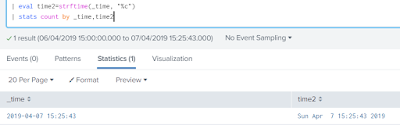
Dealing with Time: Its extremely important to have a proper timestamp. It helps to have all the events organized. _time is a default field and is present in all the events. In cases where an event doesn't contain a timestamp, Splunk automatically assign a timestamp value to the event when the event was indexed. Refrain from using "All Time", reason being it will really be a very heavy task for Splunk to have all the data in place and then to apply your SPL over it. Time conversion and its usage: There is a function called now(), which takes no arguments and returns the time when the search was started. Another add-on in Splunk is, we have an ability to convert and use time based on our requirements. For doing so we can use eval function followed by few functions: strftime(X, Y) This will convert an epoch timestamp (X) into a string format described by Y (Example: To showcase time based on our requirements). strptime(X, Y) This will convert a strin...

Search Modes

Image
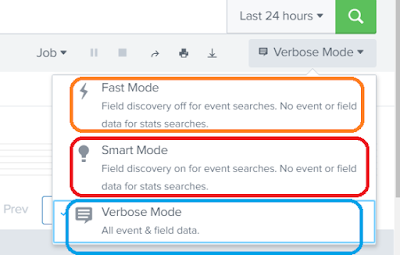
There are three types of search modes in Splunk. Fast: Filed discovery is off for event searches.  Except for default metadata fields (Host, Source, SourceType) Only fields which are mentioned in the SPL, those fields will be extracted. Smart: Filed discovery on for event searches. Returns all interesting fields based on the search which you are doing. Verbose: All events and field data. This is bit resource intensive search and is used where we are not sure what all fields we are looking for.

#6 Splunk sub(Commands) [fields, rename, replace, table, transaction]

FIELDS:  This command helps to keep or remove specified fields from the search results, below command will keep just three fields in your search result. Example: | fields request, rc, pt RENAME:  This command helps to rename field(s), below command will rename a field named as service to serviceType and RC as responseCode Example: | rename service AS serviceType, RC AS responseCode REPLACE:  This command helps to replace the values of fields with another value, below command will replace the values "fetchReport" and "viewReport" as "Report" in "serviceType' field. Example: | replace fetchReport with Report, viewReport with Report in serviceType TABLE: This command helps to format the results into tabular output. Example: | table request, rc, pt TRANSACTION:  This command helps to merge events into a single event based upon a common identifier, below command will create events based on two events i.e. it will fetch the txn-id w...

#5 Splunk sub(Commands) [sendemail, dedup, eval, concatenate, new_field]

SENDEMAIL:  This command helps you to send an email straight away from the search head itself. you just need to pass couple of values to it. For instance to whom you want to send the email, if you want to keep anyone in cc/bcc, change the subject line (by default its "Splunk Results"), sendpdf(true or false) i.e. the results, set the priority of the email, give a message i.e. the body(if required). Example: | sendemail to ="XYZ@gmail.com" subject ="Test Search Results" sendpdf =true priority =highest message ="Please find attached latest search result" sendresults =true DEDUP:  This command helps de-duplicate the results based upon specified fields, keeping the most recent match. Example: | dedup txn-id EVAL:  This command helps to evaluate new or existing fields and their values. There are multiple different functions available for eval command. Lets say you want to add a new field, for doing so you can use something like given belo...

Enable receiving port on Splunk server

Image
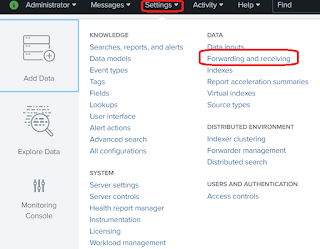
Prerequisite: Make sure the port number which you are adding is open and allowed to receive data. There are multiple ways to accomplish this, lets go one by one: CLI: Simplest and easiest way to add a port is via command line interface, you just need to traverse to $SPLUNK_HOME/bin directory and using the splunk universal binary you can do that. [splunk@ip bin]# ./splunk enable listen 9999 Splunk username: admin Password: Listening for Splunk data on TCP port 9999. Above command will require your Splunk admin credentials for adding/enabling the mentioned port number.  PS: If you want to disable it simply use disable instead of enable i.e. ./splunk disable listen 9999, basically what it does it adds a flag in your stanza and mark it as 1 < disabled = 1 >. Basically under the hood what is does, it creates a stanza in your inputs.conf  [splunktcp://9999] connection_host = ip Config file:  Another way to do it, is via ma...

Bringing data into Splunk (Continued...)

What happened behind the hood? When we added the new log file to be monitored via the graphical interface, it created and added a configuration item into inputs.conf configuration file. You can find the configuration file here: $SPLUNK_HOME/etc/apps/search/local/inputs.conf You can also manually edit this file and add your custom stanza, once done to notify Splunk about the changes, the daemon needs to be restarted. It will contain something like this: [monitor:///var/log/messages] disabled = false host = splunk_server index = idx_messages sourcetype = linux_logs Above block is known as stanza, lets decipher this :)  monitor: This is used to specify which logfile(s) you want to monitor i.e. you can mention a specific logfile as well as full directory lets say you want to monitor everything under /var/log directory, just mention "monitor:///var/log/" and Splunk will try to index everything which is there in that directory. disabled: Lets say you w...